There are photos of your children's first steps somewhere on your phone. Buried under 4,000 other shots.

The Invisible Archive Problem
We live in the most photographed era in human history. In 2023, humanity took an estimated 1.72 trillion photographs — that's roughly 54,000 photos every second. 1 The average smartphone user now accumulates over 1,500 photos per year from their device alone, and family vacations can inflate that number to several thousand in a single week. 2
Yet despite this explosion of image-making, fewer families than ever actually look at their photos regularly. A study by the photo printing company Chatbooks found that over 80% of parents admit their family photos "live and die" on their phone — never printed, never shared in any lasting format. 3
The result is a paradox: we document more than ever, yet we preserve less. The average family photo from the 1980s — developed at the corner drugstore, slipped into an envelope, dropped into a shoebox — is far more accessible today than a JPEG taken in 2019 and stored on a phone that was traded in three devices ago.
This is the invisible archive problem: the feeling that your memories are saved, when in reality they are simply deferred. 4
Creating a family album — a real, intentional, curated album — is the antidote.
Why Physical Matters More Than You Think
There is a growing body of research suggesting that physical photographs trigger deeper emotional recall than digital images. A 2022 study published in Psychological Science found that people reported stronger autobiographical memories when viewing printed photos compared to scrolling through the same images on a screen. 5 Researchers attribute this to what they call the "photo-taking impairment effect" — when we outsource memory to a device, our brain encodes less of the experience itself.
Physical albums work differently. They ask you to slow down. They invite conversation. They exist in three dimensions — their weight, smell, and texture triggering senses that no OLED display can replicate.
"When I showed my son his baby album for the first time, his face looked like Christmas morning. He kept asking me to tell him the story behind each photo. We sat there for two hours."
— Martha, Denver, Colorado
The psychologist and memory researcher Dr. Alison Landsberg writes that objects which encode shared experiences become what she calls "prosthetic memories" — portable pieces of identity that can be passed between generations. 6 A family album is perhaps the purest form of prosthetic memory available to ordinary people.
Before You Begin: Understanding What You're Dealing With
Before diving into the creative process of how to create a family album, it pays to take stock of your raw material. Most modern families have images scattered across:
- Smartphones (multiple family members, multiple generations of devices)
- DSLR or mirrorless cameras (RAW files, often on memory cards or external drives)
- Cloud services: Google Photos, iCloud, Dropbox, Amazon Photos
- Social media: Instagram archives, Facebook photo exports, WhatsApp media folders
- Legacy formats: Scanned prints, old MiniDV footage stills, CD-ROMs from early digital cameras
A 2021 Western Digital consumer study found that the average household stores photos across a minimum of 4.7 distinct locations or devices. 7 Before you can create a family album worth keeping, you need a consolidation strategy.
Step 1 — The Great Consolidation
Create a single staging folder on your computer (or a dedicated external drive). Name it clearly: <code>FAMILY_ALBUM_PROJECT_[YEAR]</code>.
Now collect from every source:
From smartphones: Use Google Photos' "Download all" in Google Takeout 8, or Apple's iCloud Photo Library export via the Mac Photos app (File > Export > Export Unmodified Original). For Android, a USB transfer or apps like Solid Explorer work well.
From WhatsApp: Navigate to Settings > Chats > Chat Backup to find your media folder. WhatsApp photos are often overlooked, yet they frequently contain candid, unposed moments of exceptional emotional value — the kinds of images that make a family album genuinely alive.
From social media: Both Facebook and Instagram offer full data exports including original photos. Go to Settings > Your Facebook Information > Download Your Information. 9 Be aware that social media platforms compress images, so use them only as a fallback when no higher-resolution original exists.
Label by contributor: If you're gathering photos from multiple family members, create subfolders by person: <code>Mum_iPhone</code>, <code>Dad_DSLR</code>, <code>Grandma_WhatsApp</code>. This will save enormous time when you begin editing.
Step 2 — Backup First. Always.
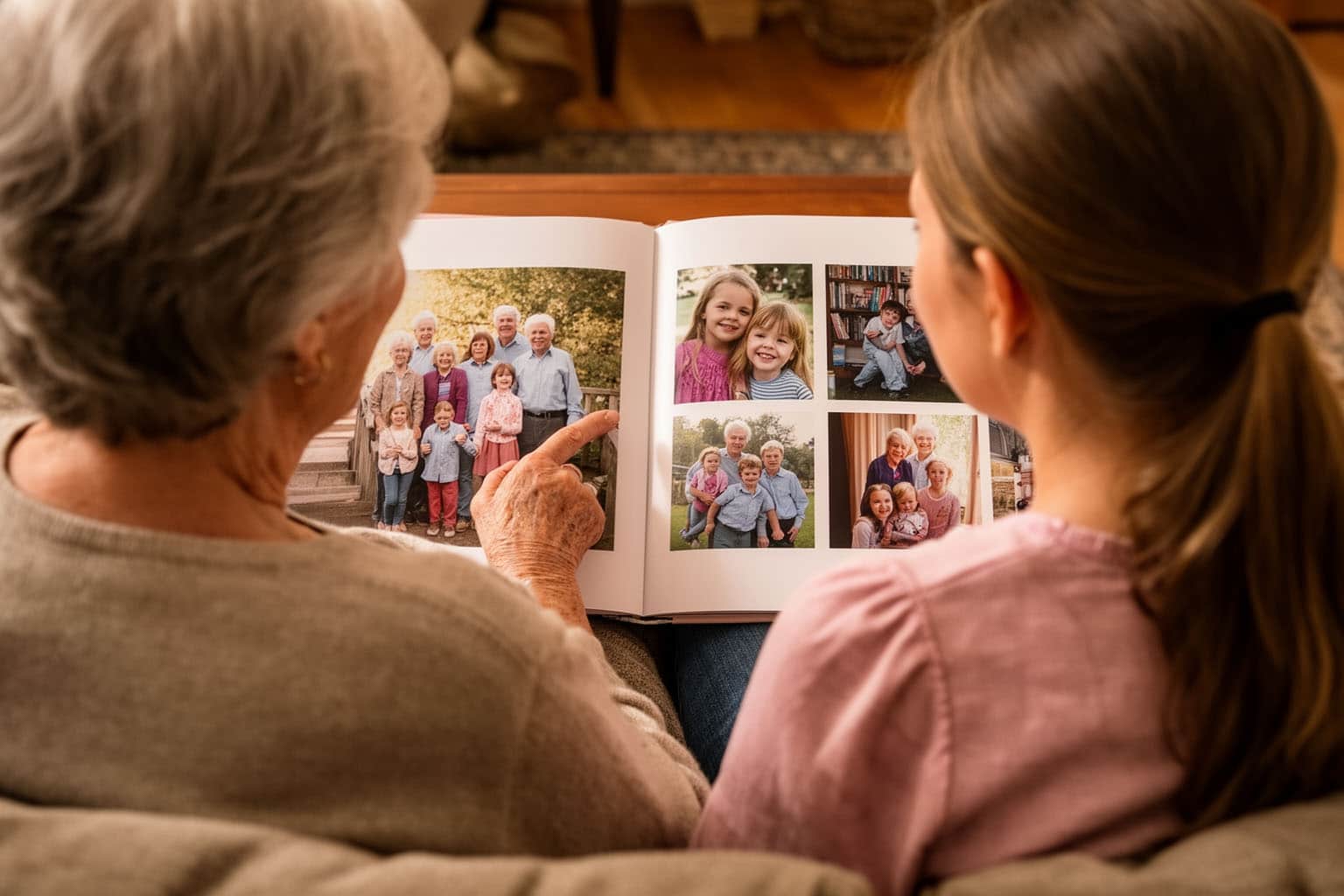
This step is non-negotiable. Before you touch a single file, create two backups:
- Local backup on an external hard drive using the 3-2-1 rule 10: 3 copies, 2 different storage types, 1 offsite.
- Cloud backup via a service such as Backblaze ($99/year for unlimited personal backup) 11, Google One, or iCloud+.
Hard drives fail. Fires happen. The Library of Congress estimates that roughly 40% of early digital photographs created before 2005 are now inaccessible due to format obsolescence, hardware failure, or simple neglect. 12 Your family's memories deserve better than a single point of failure.
Step 3 — RAW vs. JPEG: Prioritising Your Best Material
If you or anyone in your family shoots with a DSLR or mirrorless camera, you may have both RAW and JPEG versions of the same image. Always prioritise the RAW file.[efn_notes]Check our article about photography file formats https://aestheticsofphotography.com/image-file-formats/ [/efn_notes]
RAW files are unprocessed sensor data — they retain far more tonal information, allow much greater exposure correction, and produce dramatically better prints at large sizes. 13 Adobe Lightroom can be configured to show only RAW files in your library (use Smart Collections with the filter "File Type > Raw"), automatically hiding the lower-quality duplicates.
For smartphone photos — which constitute the majority of most people's libraries — the distinction is less critical, though some recent iPhone and Android models do shoot in Apple ProRAW or DNG formats. If you've enabled these, prioritise them too.
Step 4 — Screen Calibration: The Overlooked Essential
Here is the step that separates people who are disappointed with their printed albums from those who are thrilled.
If your screen isn't calibrated, your prints will look wrong.
Color management is a science in itself, but the core principle is simple: every screen displays color differently, and consumer monitors are almost universally set too bright and too saturated out of the box. 14 What looks correct on an uncalibrated screen will print noticeably duller — often with a greenish or warm tint.
The solution: A hardware colorimeter. The two most respected consumer-grade options are:
- X-Rite i1Display Pro (~$180) — professional benchmark, used by commercial photographers and print labs. 15
- Datacolor SpyderX Pro (~$150) — excellent accuracy, very user-friendly software, popular with enthusiasts. 16
Calibrate monthly, or whenever you notice a shift in how your screen renders colours. This single step will transform the quality of your printed family album.
Step 5 — Curating with Adobe Lightroom
The hardest creative decision in building a family album is selection. Choosing 80–120 images from a library of thousands feels genuinely difficult, and many people give up at this stage. 17
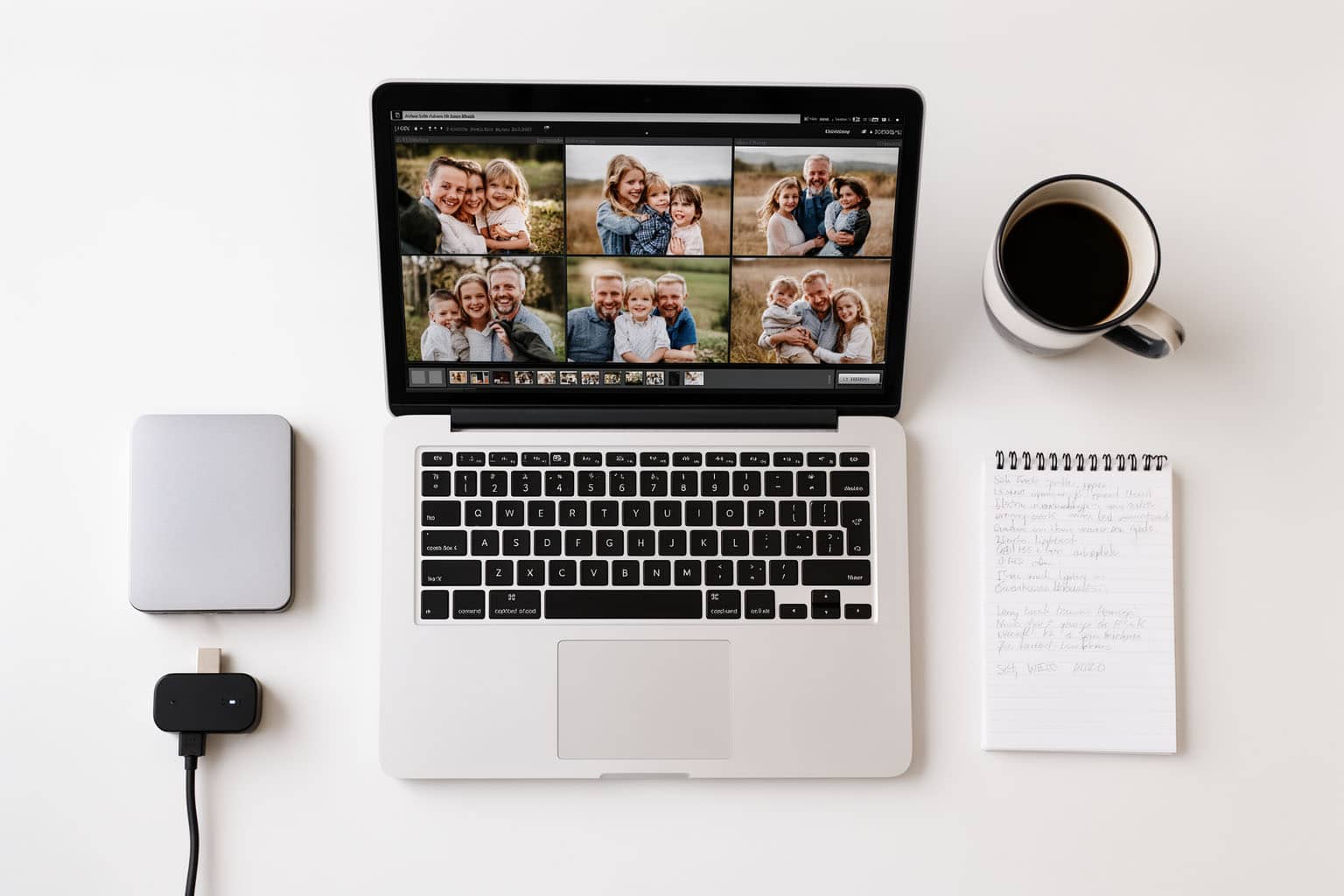
Adobe Lightroom Classic is the professional standard for this task — not just for its editing capabilities, but for its culling workflow. 18 Here's a tested approach:
Round 1 — The Reject Pass: Go through every image at speed (aim for under 3 seconds per photo). Press <code>X</code> to reject any photo that is clearly out of focus, poorly exposed beyond rescue, or a near-duplicate. Do not overthink this pass.
Round 2 — The Pick Pass: From the remaining images, press <code>P</code> to flag genuine keepers — photos that tell a story, capture an emotion, or document something important. You're aiming to flag roughly 25–30% of what survived Round 1.
Round 3 — The Star Pass: From your flagged picks, apply a 3-star rating to your absolute best images. These are your album candidates.
Organise by theme, not chronology alone: The best family albums are not calendars. They mix timelines to create emotional arcs — a section about a person, a section about a place, a section about a ritual. Study photobook designers like Erik Kessels 19 for inspiration on how radical selectivity creates powerful storytelling.
Step 6 — Retouching: Enhance, Don't Overdo
The goal of retouching family photos is not perfection — it's presence. You want each image to feel as alive on the page as the memory does in your mind.
In Lightroom, focus on these core adjustments:
Exposure and tone: Use the Exposure, Highlights, Shadows, Whites, and Blacks sliders. The goal is a balanced histogram without blown highlights, especially in skin tones.
White balance: Family photos taken under mixed indoor lighting often have an unwanted orange cast. Drag the Temperature slider slightly toward blue, and the Tint slider slightly toward green, until skin tones look natural.
Clarity and texture: A subtle boost (+10 to +15) in the Texture slider restores the tactile quality often softened by smartphone computational photography.
Noise reduction: For photos taken in low light (children's birthday parties, evening gatherings), AI-powered noise reduction in Lightroom 6+ is genuinely remarkable. 20
Resist the urge to over-process. Heavy skin smoothing, excessive saturation, and oversaturated "Instagram filters" will date your album badly within a decade.

Step 7 — Export Settings for Print
When you're ready to export for printing, precision matters. Use these settings in Lightroom's Export dialogue:
- File format: JPEG
- Quality: 90–100
- Color space: sRGB (unless your print lab specifies AdobeRGB — verify before exporting)
- Resolution: 300 PPI
- Sharpening: Output sharpening for Matte or Glossy paper (depending on your album stock), Standard amount
Name your files clearly — <code>001_Beach_Morocco_June2023.jpg</code> is infinitely more useful than <code>IMG_7834.jpg</code> when you're laying out an album.
Step 8 — Designing Your Album
This is where your family album takes its final shape. You have two main paths:
The DIY route — Adobe InDesign: Full creative control, professional typography, custom layouts. The learning curve is steep for beginners, but the results can be extraordinary. InDesign allows you to build master pages, control margins precisely, and create truly bespoke album designs. 21
The guided route — online photobook services: Platforms like Artifact Uprising 22, Printique (formerly AdoramaPix) 23, or Blurb 24 offer template-based design tools that are genuinely good. Their guided workflows handle the technical complexity while still giving you meaningful creative choices.
Design principles to follow regardless of tool:
- One story per spread. Resist the urge to fill every page with photos. White space is not wasted space — it is breathing room that makes images more powerful.
- Vary your scale. Alternate full-bleed double-page spreads with grids of smaller images. The contrast creates visual rhythm.
- Lead with your strongest image. The opening spread sets the emotional tone of the entire album. Don't save your best photo for the middle.
- Write captions. Future generations will not know who these people are without them. Even a name and a year transforms a photograph into a historical document. 25
Step 9 — Printing: Choosing the Right Partner
Not all print services are equal. The quality of your album depends as much on the printer as on the photos themselves.
Key criteria to evaluate:
Paper type: Lay-flat albums printed on true photographic paper (Fuji Crystal Archive or Kodak Endura) will outperform digital offset printing on longevity and color fidelity. 26
Binding: Lay-flat (also called "flush mount") binding allows images to span both pages of a spread without losing anything in the gutter. For family albums with landscape or group photos, this is worth the premium.
ICC profiles: Premium print labs provide downloadable ICC color profiles that allow you to soft-proof your album in Lightroom before ordering — the closest you can get to "what you see is what you get." 27
Recommended services (as of 2024):
- Artifact Uprising — best for premium, minimalist design
- Printique — best for photographic paper quality
- Blurb — best for large, editorial-style books
- Saal Digital (popular in Europe) 28
Order extras. If your budget allows, print two or three copies. Albums make deeply meaningful gifts for grandparents, and having a spare protects against damage. The marginal cost of extra copies is almost always lower than you expect.
A Note on Time: The Best Album Is the One You Actually Make
The biggest enemy of the family album project is perfectionism. Countless people have spent months — years — gathering photos, planning layouts, and waiting for the "right time," only to abandon the project entirely.
The photography curator and writer Charlotte Cotton observes that the greatest challenge of contemporary image-making is not capture but commitment: the willingness to declare that this set of images, however imperfect, represents a moment worth preserving. 29
Give yourself a deadline. Set a budget. Choose a theme narrow enough to be completable — one year, one trip, one child's first five years. You can always make another album. You cannot unmake the paralysis of endless postponement.
Quick-Start Checklist: Create a Family Album in 8 Sessions
For those who prefer a structured approach, here is a realistic project timeline:
| Session | Task | Duration |
|---|---|---|
| 1 | Consolidate all photos from all sources | 2–3 hours |
| 2 | Create backups (local + cloud) | 1 hour |
| 3 | Lightroom import + first cull (reject pass) | 2–3 hours |
| 4 | Pick pass + theme organisation | 2 hours |
| 5 | Basic retouching on selected images | 2–3 hours |
| 6 | Album layout design | 3–4 hours |
| 7 | Review, captions, final adjustments | 1–2 hours |
| 8 | Export + order | 30 minutes |
Total realistic time investment: 14–20 hours — spread across two to four weekends.
Conclusion: Your Family's Story Deserves a Physical Home
The digital archive is not permanent. Cloud services shut down, subscription models change, formats become obsolete. 30 The photo you printed and placed in an acid-free album in 2024 will, statistically, outlast the JPEG sitting on a subscription cloud storage account.
More importantly: a family album is not a backup. It is a narrative. It says: this is who we are, this is what we loved, this is what we looked like when we were together. That act of intentional curation — the choosing, the arranging, the printing — is itself a form of love.
You already have the photos. You already have the memories. All that remains is to give them the home they deserve.
References
- Keypoint Intelligence / InfoTrends, *Photo Industry Report 2023*. Cited in multiple industry analyses including Photutorial's annual "How Many Photos" global study.
- Statista Research Department, *Average number of photos taken per year by smartphone users worldwide*, 2022–2023.
- Chatbooks Consumer Survey, *State of Family Photos*, 2021. Conducted with 2,000 US parents of children under 18.
- Abigail Susik, "The Ephemeral Image in the Age of Digital Abundance," *Afterimage: The Journal of Media Arts and Cultural Criticism*, Vol. 48, No. 3, 2021.
- Linda Henkel, "Point-and-Shoot Memories: The Influence of Taking Photos on Memory for a Museum Tour," *Psychological Science*, Vol. 25, No. 2, 2014. Updated replications in digital vs. print contexts are ongoing. See also: Henkel & Mattson, "Reading is Better than Skimming," *Journal of Experimental Psychology*, 2011.
- Alison Landsberg, *Prosthetic Memory: The Transformation of American Remembrance in the Age of Mass Culture*, Columbia University Press, 2004.
- Western Digital, *2021 Global Digital Life Study: How People Manage and Value Their Digital Content*, conducted with 10,000 consumers across 10 countries.
- Google Takeout: https://takeout.google.com — allows complete export of all Google Photos, including metadata and original resolution files.
- Meta Privacy Center: https://www.facebook.com/help/212802592074644 — guide to downloading all Facebook data including photos and videos.
- The 3-2-1 backup rule: keep **3** copies of data, on **2** different media types, with **1** copy offsite. Originated by photographer Peter Krogh in his book *The DAM Book: Digital Asset Management for Photographers* (O'Reilly Media, 2005, 2nd ed. 2009).
- Backblaze Personal Backup: https://www.backblaze.com/cloud-backup/personal — widely regarded as the best value unlimited cloud backup solution for consumers.
- Library of Congress Digital Preservation resources: https://www.loc.gov/preservation/digital/ — documentation on digital preservation challenges including media degradation and format obsolescence.
- Cambridge in Colour, "RAW vs. JPEG: When Does It Matter?", https://www.cambridgeincolour.com/tutorials/RAW-file-format.htm — comprehensive technical comparison.
- Andrew Rodney (Digital Dog), *Color Management for Photographers: Hands on Techniques for Photoshop Users*, Focal Press, 2005. See also: X-Rite Education Center, "Understanding Monitor Calibration," https://www.xrite.com/service-support/color-management-tutorials
- X-Rite i1Display Pro: https://www.xrite.com/categories/calibration-profiling/i1display-pro — industry standard for display profiling.
- Datacolor SpyderX Pro: https://www.datacolor.com/spyderx/ — consistently top-rated in independent reviews by *Digital Photography Review* and *Imaging Resource*.
- National Geographic Photography Essay: "Why We Stop Looking at Our Photos," *National Geographic*, March 2022. Survey data from 3,400 US adults on photo archiving habits.
- Adobe Lightroom Classic: https://www.adobe.com/products/photoshop-lightroom-classic.html — available as part of Adobe Creative Cloud Photography plan (~€12/month).
- Erik Kessels, *Photography in Abundance*, Aperture, 2016 — a seminal meditation on photo overload and curation in the digital age.
- Adobe Lightroom's AI-powered Denoise feature, introduced in Lightroom Classic 12.3 (April 2023), uses machine learning to reconstruct detail from noisy RAW files. Reviewed in *PetaPixel*, April 2023: https://petapixel.com/2023/04/18/adobe-lightroom-ai-denoise-review/
- Adobe InDesign: https://www.adobe.com/products/indesign.html — industry standard for print layout design. Numerous free photobook templates available via Adobe Stock and community platforms like Behance.
- Artifact Uprising: https://www.artifactuprising.com — widely regarded as the premium consumer photobook platform, known for exceptional paper quality and minimalist design templates.
- Printique: https://www.printique.com — professional-quality printing with Fuji Crystal Archive paper options and lay-flat binding. Frequently top-rated by photography reviewers.
- Blurb: https://www.blurb.com — global printing platform used by professional photographers and publishers, with InDesign plugin support for advanced users.
- Susan Sontag, *On Photography*, Farrar, Straus and Giroux, 1977. Sontag's foundational argument that photographs become meaningful only when embedded in narrative context remains essential reading for anyone creating a documentary archive.
- Wilhelm Imaging Research: https://www.wilhelm-research.com — the world authority on the longevity and stability of photographic materials. Publishes independent testing of print stability for commercial printing services.
- ICC (International Color Consortium): https://www.color.org — standards body for color management in digital and print workflows. Free ICC profiles for major print labs are available via the respective lab websites.
- Saal Digital: https://www.saal-digital.com — German-based photo lab with excellent lay-flat album options and European distribution, frequently reviewed by French and German photography publications.
- Charlotte Cotton, *The Photograph as Contemporary Art* (3rd ed.), Thames & Hudson, 2014. See also Cotton's essay "The Disposable Archive" in *Foam Magazine*, Issue 37, 2014.
- See the closure of Google+ Photos (2019), Flickr's storage limit changes (2019), and the ongoing vulnerability of iCloud data tied to active subscription payments — as documented by the Electronic Frontier Foundation in its annual *Who Has Your Back* report: https://www.eff.org/pages/who-has-your-back